Dialogue and text
Show names and lines in the message window, with text speed, ruby, colour and size tags, auto and skip modes, and a backlog for rereading.
A game engine for visual novels and adventure games
LUMINA ENGINECreate visual novels and adventure games with text scripts and your assets.
WHAT YOU CAN DO
Show text, present characters, set the mood with sound, branch with choices — the essentials of an ADV are available as text commands.
Show names and lines in the message window, with text speed, ruby, colour and size tags, auto and skip modes, and a backlog for rereading.
Characters enter, leave and change expressions; show backgrounds and event CGs. Characters' mouths can move in time with the voice.
Fades and image-mask transitions, screen shake, monochrome and sepia tones, camera pans and zooms, and particle effects.
LUMINA's own 2D motion deforms a single illustration with a mesh to add blinking, lip sync and sway. Build it from a PSD in the dedicated editor.
About Live2D Live2D models are supported too. Using Live2D requires agreeing to Live2D Inc.'s license (and a contract when required). → About Live2D
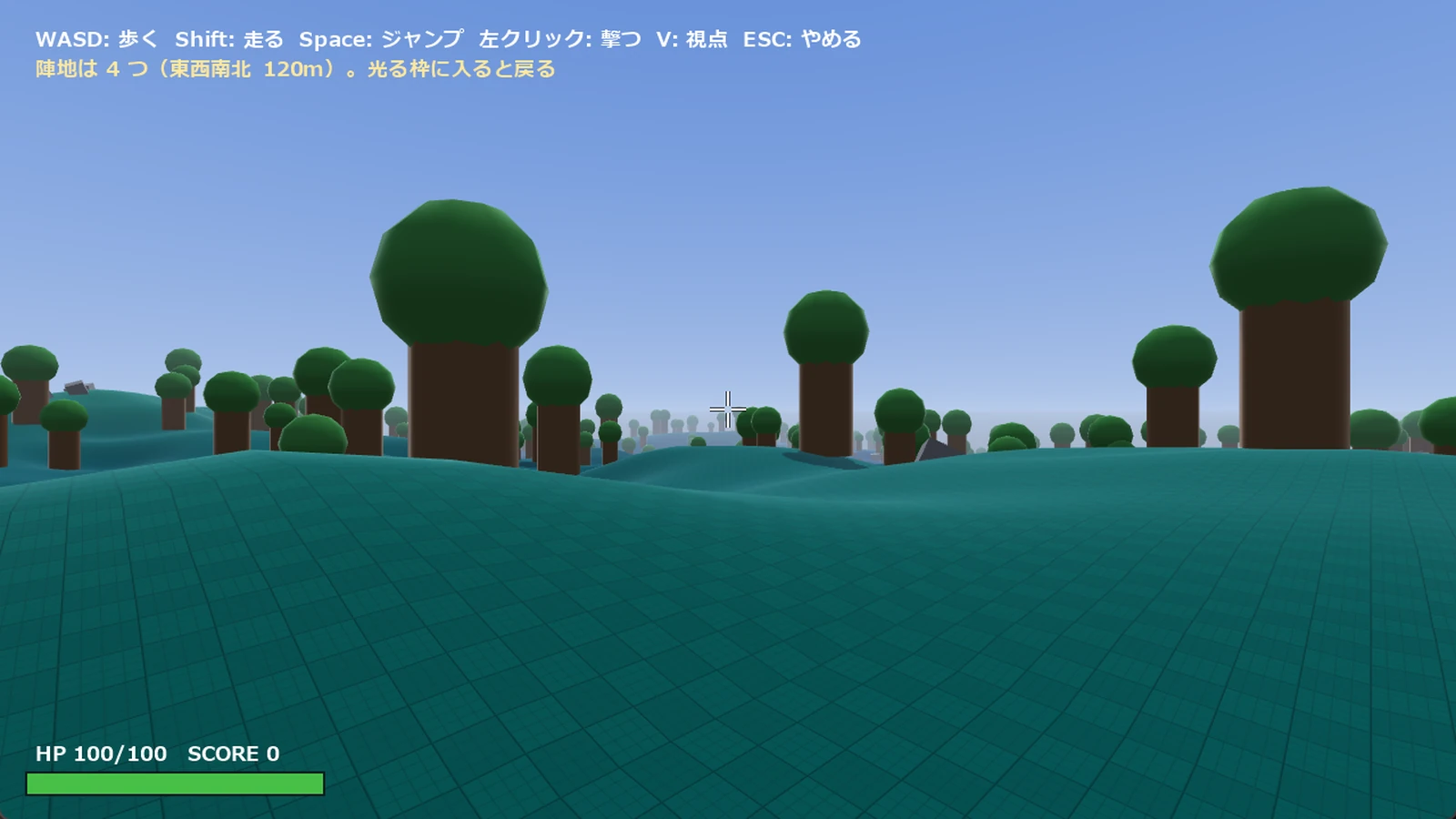
Build scenes from glTF / GLB 3D models and layer them as backgrounds. You can also make 3D exploration parts where the player walks around.
BGM, sound effects and voice with volume, fades and loops. Play opening and event movies too.
Choices, variables, flags and conditions make multi-route, multi-ending stories. A weekly-schedule raising and dating sim system is built in too.
Prepare text, images and scenarios per language — for example Japanese and English — and switch while playing.
Pack your assets for release, and encrypt them with a password if you like. Steam achievements and cloud saves, and Google Play asset delivery, are supported.
SCREENS
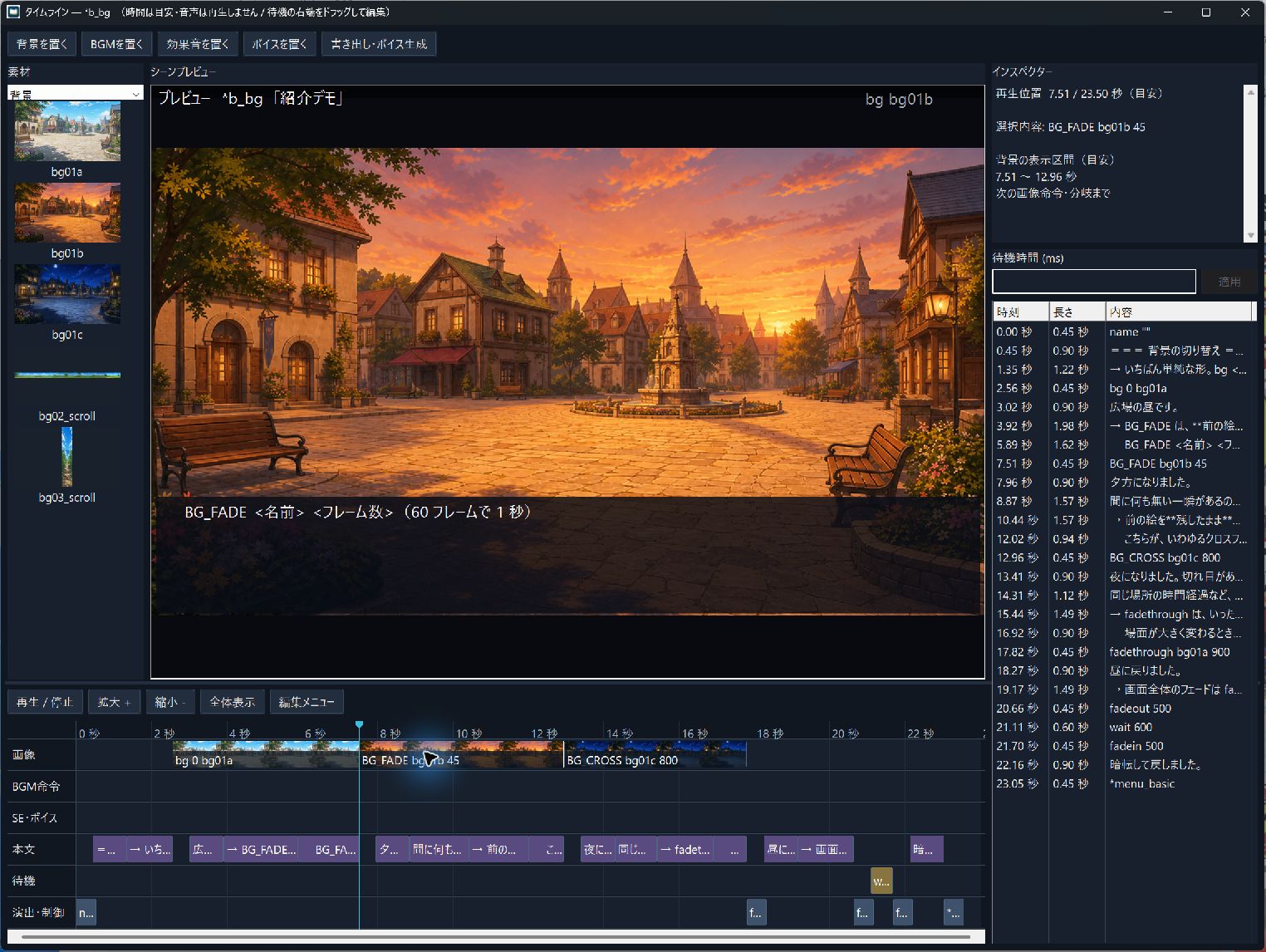
See the authoring timeline and a 3D scene running in the engine.
HOW IT LOOKS
The example below shows background and character commands, dialogue, and choices. Commands and tab-indented dialogue are written from top to bottom.
*talk
bg 0 bg01a
chara_show 0 "student_smile" left 20 sync
chara_show 1 "yukata_trouble" right 20 sync

name "澪"
	待ち合わせの時間には、まだ少し早いみたいね。

name "詩織"
	噴水の前と、並木道。どちらから見て回りますか。

#select_add "噴水の前でひと休みする", *c_a
#select_add "並木道を歩いていく", *c_b
#select_show
Lines starting with * are labels (jump targets); lines starting with a tab are dialogue.
SYSTEM SCREENS
Title, save, settings and other commonly used screens come as ready-made samples. Use them as they are, or reshape their look and behaviour for your game by editing each screen's script.
PLATFORMS
Most of the work happens on Windows. The same scenario and assets run on the other platforms (export the browser and Android builds and check them there).
Ship as an app for Windows 10 / 11 PCs.
Release on Steam, with achievements and cloud saves (Steamworks setup required).
No install — play in a desktop or mobile browser (one that supports WebGPU).
An app for phones and tablets, ready for Google Play.
Platform differences Linux, iOS, PlayStation and Switch are in development and cannot run yet. Some features differ by platform, such as movie formats ( platform differences ).
GETTING STARTED
Prepare backgrounds and character art, write dialogue, staging and choices in a scenario, then run it to check your first scene. The beginner guide explains each step.
Put backgrounds, characters, music and so on in the right places in the game folder (GameData).
Write dialogue and commands in a text file, and connect it to the title screen's New Game button.
Launch the game and play the scene you wrote, starting from the title.
MANUALS
For people starting to write scenarios: folders, your first scene, common commands, branching, the title screen and saving — in order.
How the engine works, how to ship, file specifications, tools, and the full list of commands.
Availability The engine and the audio and video playback plugins can be downloaded from the availability page.